> ## Documentation Index
> Fetch the complete documentation index at: https://botpress-ak-docs-20-document-updating-variables-from-outsid.mintlify.site/llms.txt
> Use this file to discover all available pages before exploring further.

# Assigning a value

export const GoodToKnow = ({children}) => {
  return <Callout icon="notebook-pen" color="#65d15a" iconType="regular">
      {children}
    </Callout>;
};

A newly-created variable is like an empty box—you need put something inside it before you can use it. This is called *assigning a value* to your variable.

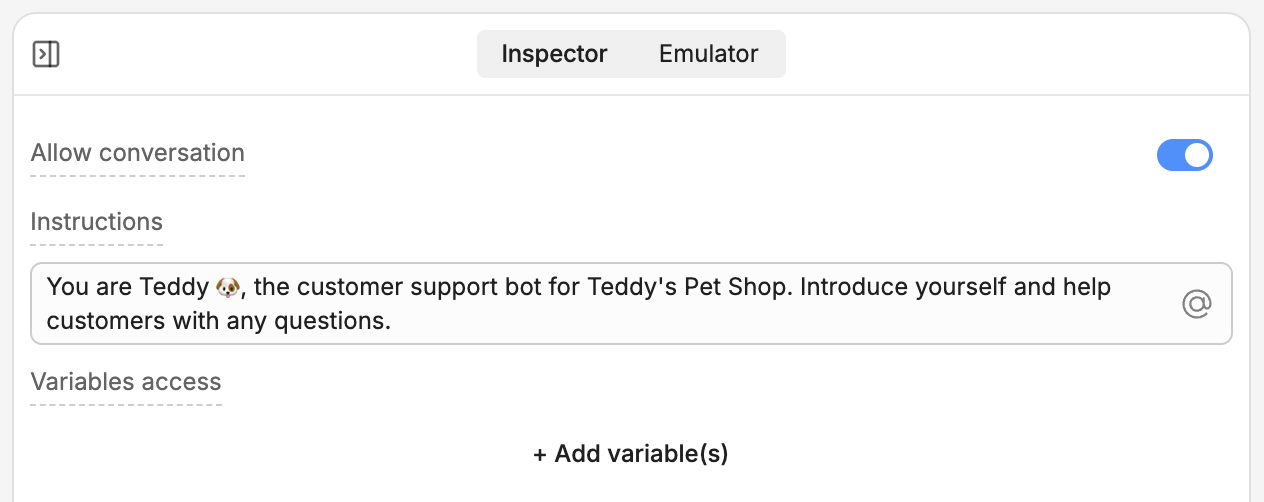
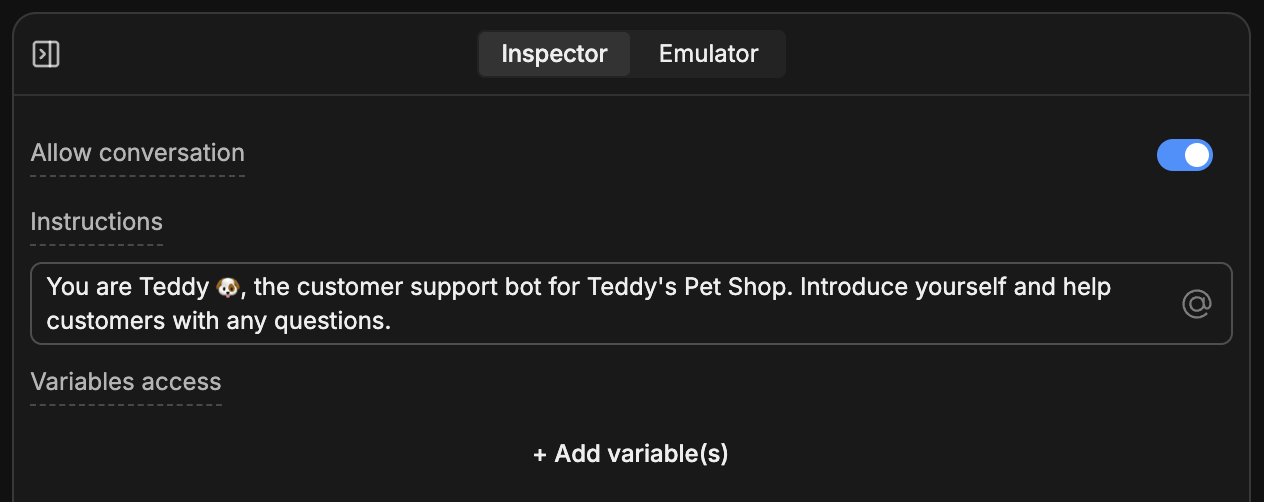
Let's use our `firstName` variable to remember the user's first name. Go back to the Main Workflow and select your Autonomous Node. This opens its inspector:
<Frame>
  <img alt="Autonomous Node inspector" className="block dark:hidden" src="https://mintcdn.com/botpress-ak-docs-20-document-updating-variables-from-outsid/e8kcWWwkIMr2LAPw/tutorial/basics/storing-information/assets/inspector.png?fit=max&auto=format&n=e8kcWWwkIMr2LAPw&q=85&s=ca4fe41b40e385af0e3d1e581f8246b1" width="1264" height="502" data-path="tutorial/basics/storing-information/assets/inspector.png" />

  <img alt="Autonomous Node inspector" className="hidden dark:block" src="https://mintcdn.com/botpress-ak-docs-20-document-updating-variables-from-outsid/e8kcWWwkIMr2LAPw/tutorial/basics/storing-information/assets/inspector-dark.png?fit=max&auto=format&n=e8kcWWwkIMr2LAPw&q=85&s=4f0bf891e2984a76f61a5b7d41af402a" width="1264" height="502" data-path="tutorial/basics/storing-information/assets/inspector-dark.png" />
</Frame>

## Giving access to variables

By default, the Autonomous Node can't check what's in a variable or assign it a different value.

Let's give it access. Select **+ Add variable(s)**, then select `workflow.firstName`. Then, check **Allow write access**, so your bot has permission to modify the variable.


<Frame>
  <img alt="Variable access" className="block dark:hidden" src="https://mintcdn.com/botpress-ak-docs-20-document-updating-variables-from-outsid/yvaA5dZS1nQ_qaqv/tutorial/basics/storing-information/assets/variable-access.png?fit=max&auto=format&n=yvaA5dZS1nQ_qaqv&q=85&s=29fb717ed52d55e356b3a0276bd2287f" width="1264" height="152" data-path="tutorial/basics/storing-information/assets/variable-access.png" />

  <img alt="Variable access" className="hidden dark:block" src="https://mintcdn.com/botpress-ak-docs-20-document-updating-variables-from-outsid/yvaA5dZS1nQ_qaqv/tutorial/basics/storing-information/assets/variable-access-dark.png?fit=max&auto=format&n=yvaA5dZS1nQ_qaqv&q=85&s=fbbbf38dbeb32846a3df8c33b18aa270" width="1264" height="152" data-path="tutorial/basics/storing-information/assets/variable-access-dark.png" />
</Frame>

## Modifying your prompt

Next, modify the prompt so your bot knows how to work with the variable. Erase everything in the **Instructions** field, then paste the following:

```txt wrap theme={null}
You are Teddy 🐶, the customer support bot for Teddy's Pet Shop.

If the `firstName` variable has a value, use it to address the user by name. If not, prompt the user to enter their name, then assign it to `firstName`.
```

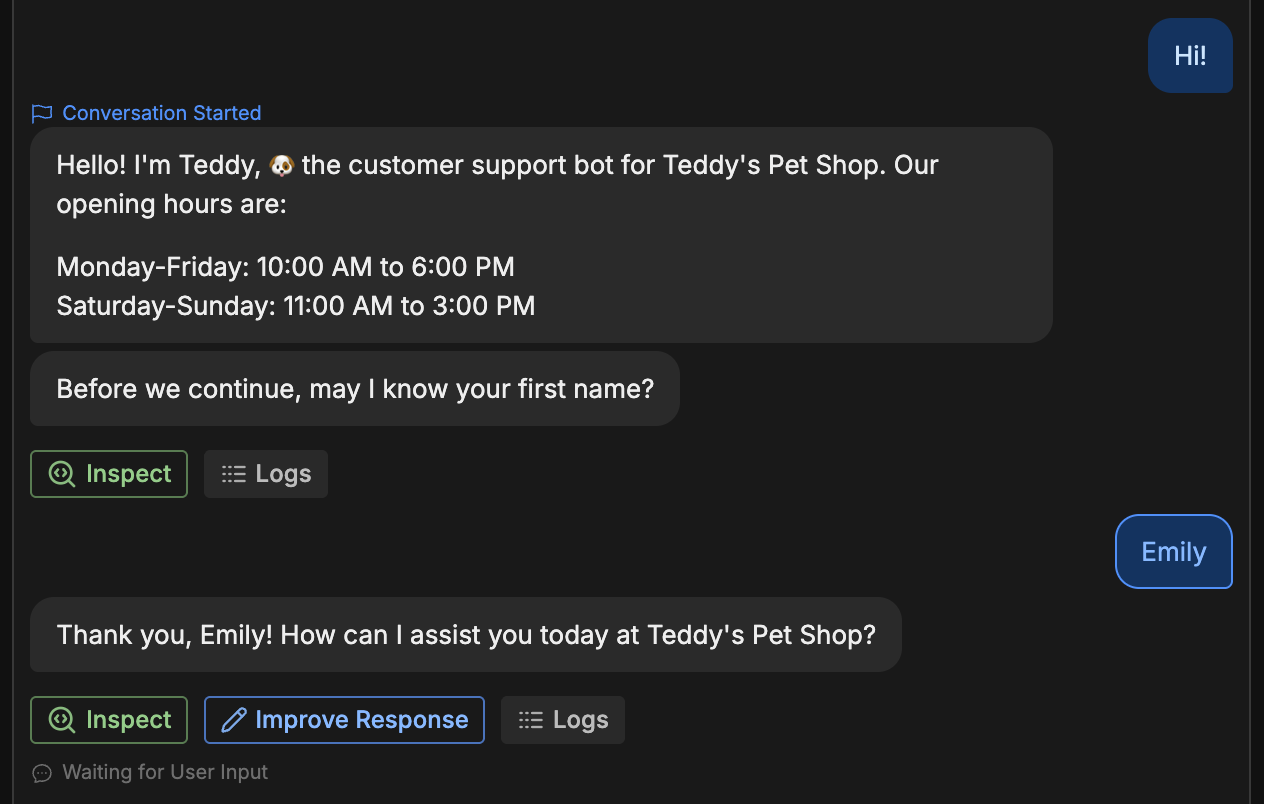
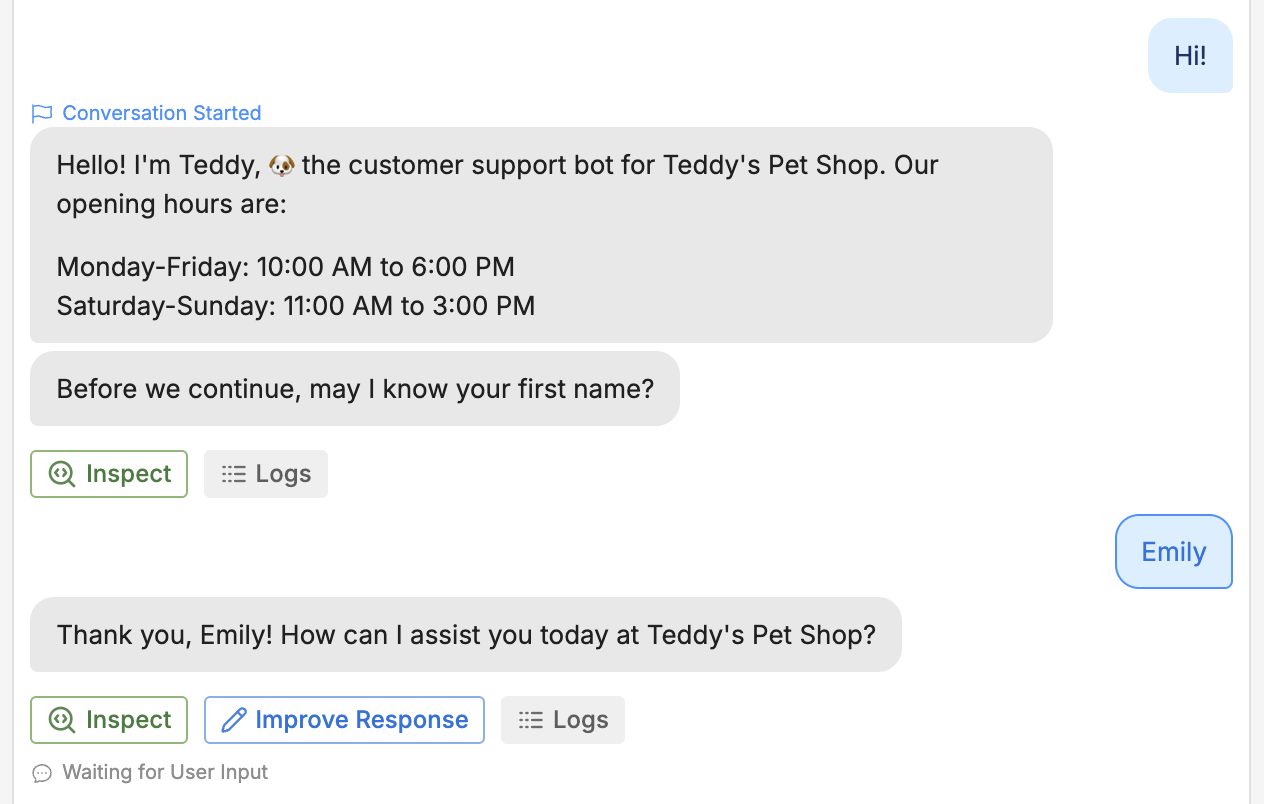
Now, switch back to the Emulator and start a conversation with your bot:
<Frame>
  <img alt="Variable test" className="block dark:hidden" src="https://mintcdn.com/botpress-ak-docs-20-document-updating-variables-from-outsid/yvaA5dZS1nQ_qaqv/tutorial/basics/storing-information/assets/variable-test.png?fit=max&auto=format&n=yvaA5dZS1nQ_qaqv&q=85&s=d0c51589296a9aef703a233ead3e9b46" width="1264" height="804" data-path="tutorial/basics/storing-information/assets/variable-test.png" />

  <img alt="Variable test" className="hidden dark:block" src="https://mintcdn.com/botpress-ak-docs-20-document-updating-variables-from-outsid/yvaA5dZS1nQ_qaqv/tutorial/basics/storing-information/assets/variable-test-dark.png?fit=max&auto=format&n=yvaA5dZS1nQ_qaqv&q=85&s=f580642d816c002078ecb41fc7554224" width="1264" height="804" data-path="tutorial/basics/storing-information/assets/variable-test-dark.png" />
</Frame>

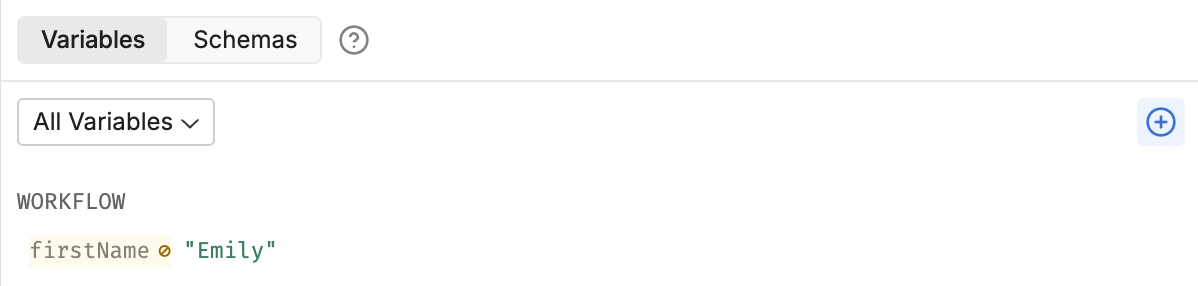
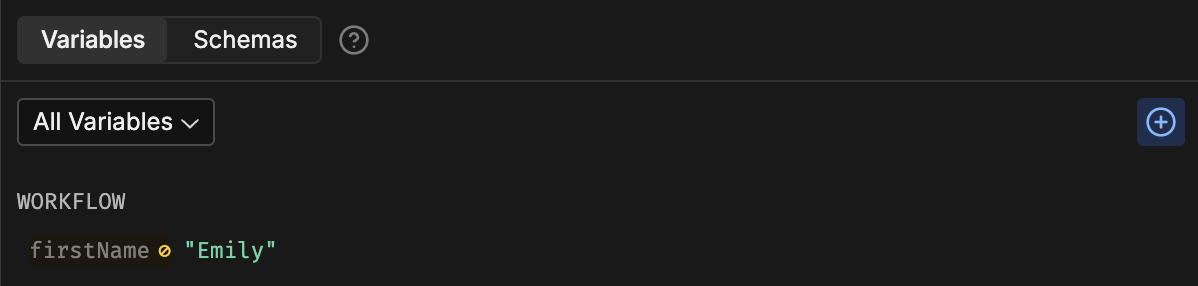
Nice! Our modified prompt worked. If you look back at the Variables section, you can see that the value updated:
<Frame>
  <img alt="New value" className="block dark:hidden" src="https://mintcdn.com/botpress-ak-docs-20-document-updating-variables-from-outsid/yvaA5dZS1nQ_qaqv/tutorial/basics/storing-information/assets/new-value.png?fit=max&auto=format&n=yvaA5dZS1nQ_qaqv&q=85&s=a8c99f0852478eaf729c57b01d9a7494" width="1198" height="286" data-path="tutorial/basics/storing-information/assets/new-value.png" />

  <img alt="New value" className="hidden dark:block" src="https://mintcdn.com/botpress-ak-docs-20-document-updating-variables-from-outsid/e8kcWWwkIMr2LAPw/tutorial/basics/storing-information/assets/new-value-dark.png?fit=max&auto=format&n=e8kcWWwkIMr2LAPw&q=85&s=227e3316596149f33ce332d5a869dafa" width="1198" height="286" data-path="tutorial/basics/storing-information/assets/new-value-dark.png" />
</Frame>